Authentication & SSO
By default, Langfuse supports email/password and social logins (Sign in with Google, GitHub, Microsoft).
For increased security, you can also configure Enterprise SSO (e.g. Okta, Authentik, GitHub Enterprise, OneLogin, Azure AD, Keycloak, JumpCloud etc.) via OIDC.
For more details on authorization, please refer to the RBAC docs.
For self-hosted instances, please refer to the Self-hosted Authentication and SSO guide.
Email/Password authentication
By default, Langfuse uses email and password authentication. Langfuse enforces standard password complexity requirements.
If you signed up with a social login, you can add a password via the “reset password” link in the login page.
Social Logins
For simplified access, users can sign in using their existing social accounts:
- GitHub
- Azure AD (Entra ID)
For security reasons, Langfuse does not support switching between social logins or signing up with a social login after signing up with email/password.
Enterprise SSO & SSO Enforcement
- Hobby(Not Available)
- Core(Not Available)
- Pro(Teams Add-on required)(Team)
- Enterprise
- Self Hosted
Langfuse supports Enterprise SSO (e.g. Okta, Authentik, OneLogin, Azure AD, Keycloak, WorkOS, JumpCloud etc.) via OIDC. Please reach out to support to enable this feature.
Langfuse supports multiple domains per customer organization, but each domain must be exclusively owned by your organization. Shared domains (e.g., from subcontractors or consultancies) are not supported.
Details:
- Migration: Existing users who signed up with an email/password or social logins are automatically migrated to the Enterprise SSO provider once it is set up.
- Authorization: Enterprise SSO does not automatically provision roles for new users upon signup. Users must be invited to an organization, either through the UI (settings > members) or the SCIM API.
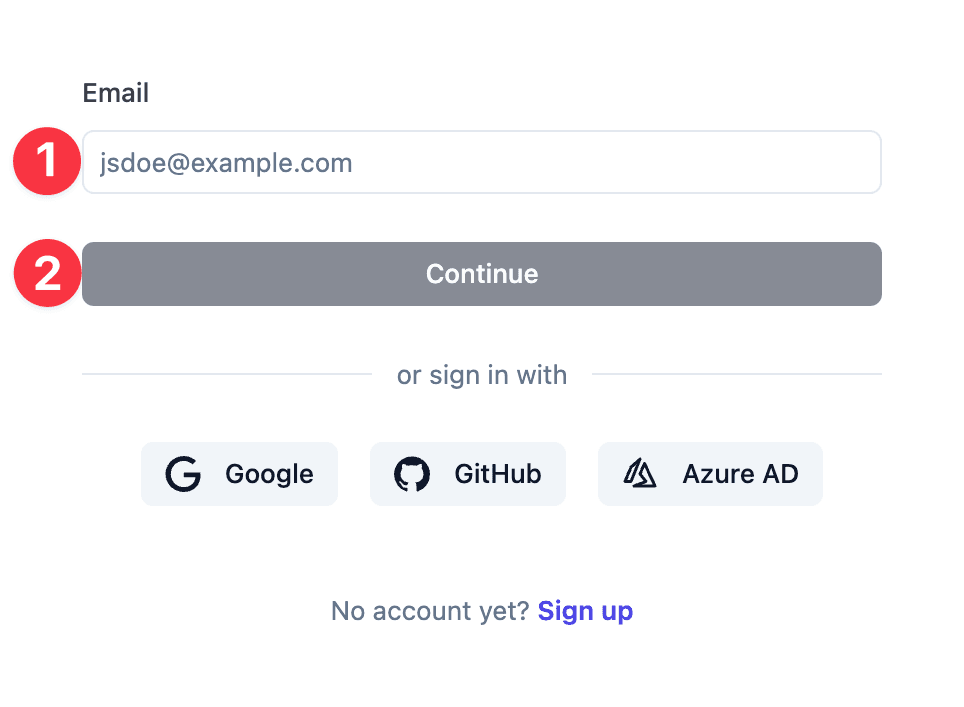
- Signing in: To sign in with an Enterprise SSO provider, please (1) enter your email address, and (2) press “Continue”. You will be redirected to the Enterprise SSO provider to authenticate.
Langfuse supports authentication via OIDC only. SAML is not supported.
Vendor Guides
Okta
Step 1: Create an OIDC Application in Okta
- Log in to the Okta Admin Console
- Navigate to Applications > Applications
- Click Create App Integration
- Select OIDC - OpenID Connect as the Sign-in method
- Select Web Application as the Application type
- Click Next
Step 2: Configure the Application
- Enter an App integration name (e.g., “Langfuse”)
- Set the Sign-in redirect URI to:
https://<langfuse-url>/api/auth/callback/<domain>.oktaExample:https://cloud.langfuse.com/api/auth/callback/example.com.okta - (Optional) Set a Sign-out redirect URI if needed
- (Scopes) Scopes are not used by Langfuse during authentication
- Under Assignments, choose how to assign users
- Click Save
Step 3: Retrieve Credentials
- On the application’s General tab, copy the Client ID and Client Secret
- Note your Okta Issuer URL (e.g.,
https://example.okta.com)
Step 4: Share Credentials with Langfuse
Share the following with Langfuse via support:
- Instance URL (e.g.,
https://cloud.langfuse.comorhttps://us.cloud.langfuse.com) - Issuer URL (e.g.,
https://example.okta.com) - Client ID
- Client Secret
You can share the credentials with any secure method. Usually, sharing via password managers works best.
Step 5: Assign Users
- In Okta, go to your Langfuse application’s Assignments tab
- Assign users or groups who should have access to Langfuse
IdP-Initiated SSO
Langfuse supports IdP-initiated SSO (Identity Provider-initiated Single Sign-On), where users can start the SSO flow directly from Okta instead of starting from Langfuse.
Example of IdP-initiated SSO authentication flow (Okta):
To enable IdP-initiated SSO, configure Okta to redirect users to:
https://cloud.langfuse.com/auth/sso-initiate?provider=<PROVIDER>- Replace
<PROVIDER>with the last part of your callback URL, e.g.example.com.okta. - Use the
Redirect to app to initiate login (OIDC Compliant)option in Okta’s settings.
User Provisioning with SCIM
For automated user provisioning, see the Okta SCIM Setup Guide.
Related Resources
- SCIM & Organization API to automate user provisioning, role assignments, and project setup after configuring SSO